

Censor a photo online—in seconds with AI
Blur, pixelation, or solid masks with AI-assisted detection—same Blurit Studio workflow; this page targets the "censor photo online" search intent.
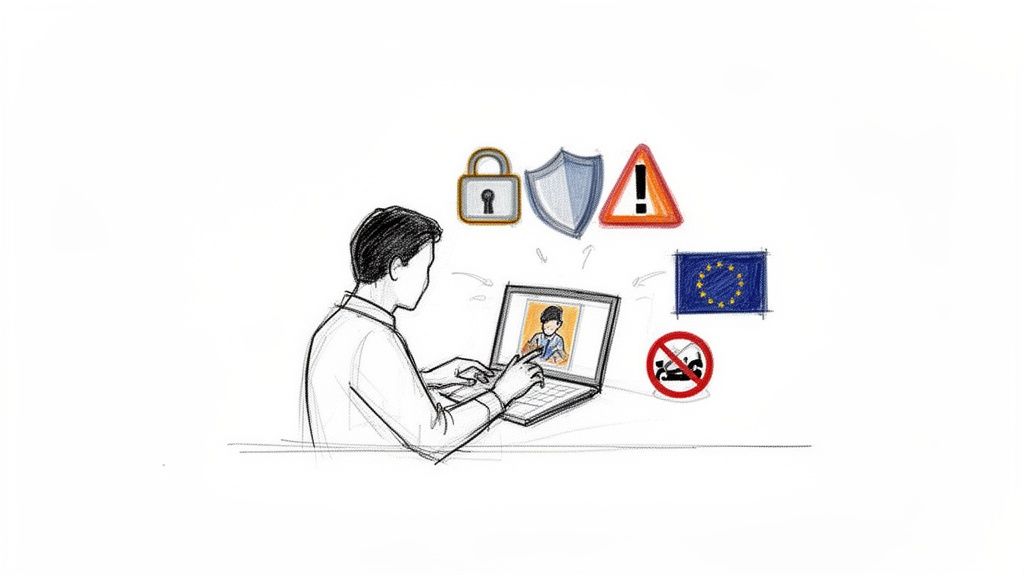
Full guide (EN): How to censor a photo online — practical guide (blur vs pixelation vs solid masks, GDPR vendor checks, batch & API). This service page summarizes Blurit Studio for the "censor photo online" intent.
Censor photos online with AI
There is a responsible way to censor photos online: use real redaction—blur, pixelation, or solid masks—with AI-assisted detection for faces and plates. Blurit runs in the browser so you can publish faster without hand-drawing every box [1].
- ✓ Blur, pixelation, or solid masks per region
- ✓ AI suggests detections; you refine before export
- ✓ Fits common image workflows in Studio
- ✓ Batch & API for teams (see the blog guide)
- ✓ GDPR-minded: confirm vendor terms before sensitive uploads
Start from blur photo online, compare pricing, browse our blog, and read the long-form censor photo online guide for method trade-offs.
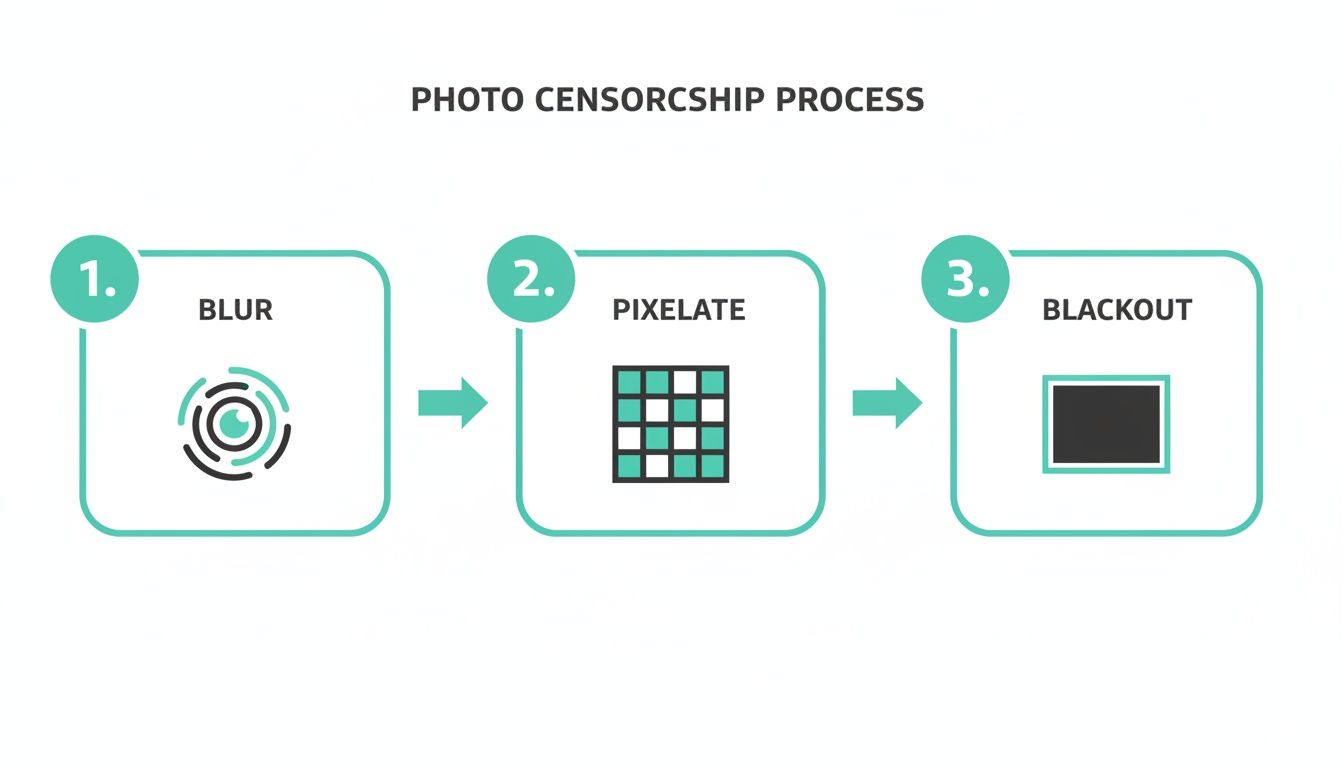
Three ways to censor a photo
Blur keeps a softer look. Pixelation increases anonymity. Solid masks maximize redaction when identity must not survive reconstruction.
Why censor photos online? (Use cases)
Photo privacy matters for marketing, journalism, and public-sector releases. Regulations such as GDPR expect lawful handling of identifiable data in images [1] [4].
Marketing and events
Background crowds and signage often need redaction before ads or social posts go live.
Journalism
Protect sources and bystanders while keeping the story readable [8].
Platforms
Major networks enforce privacy expectations on identifiable people in stills [3].

How it works in Blurit Studio
Your image moves through upload → AI-assisted redaction → export, with review in between.
Upload your image
Your action: Bring the photo you want to redact into Blurit.
Formats: JPG, PNG, WebP, and other common still formats in Studio.
Detect and refine
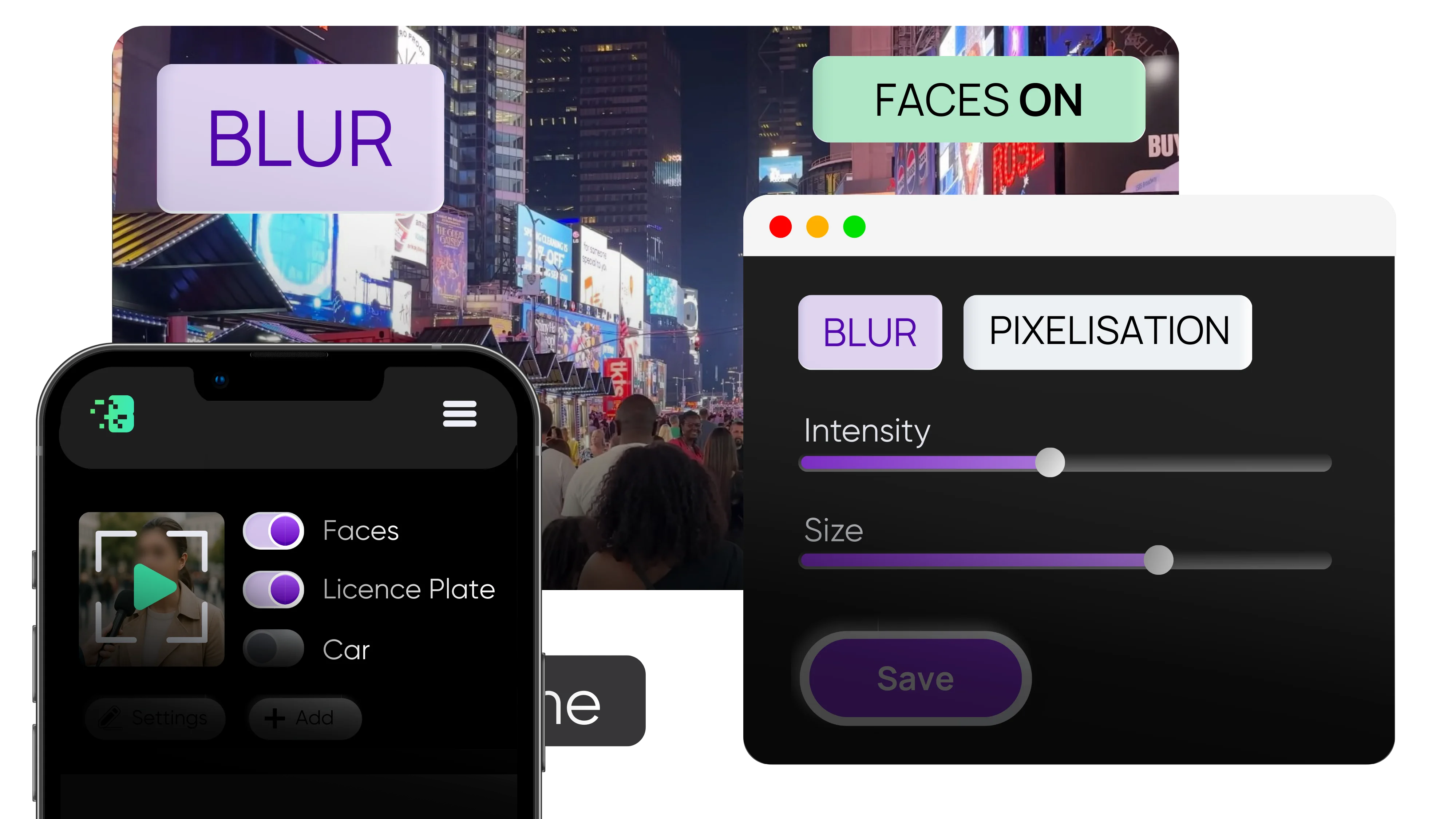
Automatic: Suggested regions for faces and plates.
Adjust method and intensity, remove false positives, then lock the look you need.
Download your redacted image
Result: A file ready to publish or archive.
Export with redaction baked into pixels for the delivered asset.
Key features
Detection-assisted redaction
Suggested masks for faces and plates; you stay in control before export.
Multiple methods
Blur, pixelation, or solid masks depending on risk and aesthetics.
Built for privacy workflows
Designed for teams that need repeatable redaction—not one-off filters.
Frequently Asked Questions
A: Blurit supports common formats like JPG, PNG, and WebP; check Studio for the latest list. If yours is missing, contact support.
A: Most single photos finish in seconds to a minute depending on resolution and detections.
A: Yes. Pick the method that matches your risk level—blur for aesthetics, pixelation for stronger anonymity, solid masks for maximum redaction.
A: Files are processed on secure infrastructure and deleted after download per product policy. Review the latest privacy terms before uploading sensitive material.
A: Yes. Review AI suggestions, remove false positives, and fine-tune intensity or method before export.
References
- [1] European Union. General Data Protection Regulation (GDPR), Regulation (EU) 2016/679. https://gdpr-info.eu/
- [2] UK Information Commissioner's Office (ICO). Guidance on video surveillance (including CCTV). https://ico.org.uk/...
- [3] YouTube Help. Privacy Guidelines. https://support.google.com/youtube/answer/7671399
- [4] California Legislature. California Civil Code 1798.100 (CCPA/CPRA). https://leginfo.legislature.ca.gov/...
- [5] Blur.me. Best Face Blur Tool and Privacy Protection. https://www.blur.me/blog/best-face-blur-tool-privacy-protection/
- [6] Wondershare Filmora. Blur Face in Video Online Guide. https://filmora.wondershare.com/ai-efficiency/blur-face-in-video-online.html
- [7] U.S. HHS. HIPAA Privacy Rule. https://www.hhs.gov/hipaa/
- [8] Reuters Institute. Digital Journalism Ethics: Privacy and Source Protection. University of Oxford, 2023.